
DoorDreamer® Shortcut
The DoorDreamer® Visualizer is a tool to view any door on your home in seconds. By installing the visualizer shortcut on your mobile and desktop devices, you’ll have quick access to the tool whenever you want without needing to search for it.
 |
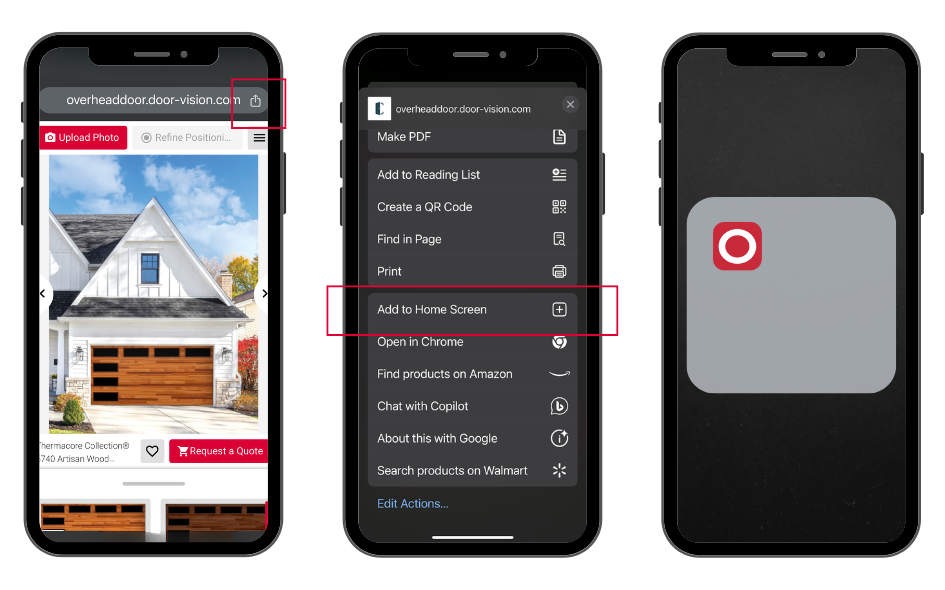
How to Add the Shortcut:
Mobile
iOs
- Open the DoorDreamer® Visualizer on your mobile browser.
- Tap the
 icon, then select "Add to Home Screen"
- Using Safari: This icon is located at the bottom of the page on your toolbar.
- Using Chrome: This icon is located at the top of the page on your toolbar
- The DoorDreamer® Shortcut will be added to your iOS home screen. You’ll be able to click the icon to go directly to the website.
Mobile
Android
- Open the DoorDreamer® Visualizer on your mobile browser.
- A confirmation pop-up window will appear. Tap “Install”.
- The DoorDreamer® Visualizer shortcut will be added to your mobile device home screen as its own icon. You can click on it to launch the DoorDreamer® Visualizer directly from your mobile device.
Desktop
Adding on macOS Safari:
- Open the DoorDreamer® Visualizer on your Safari Browser.
- From the File menu in the top-left menu bar, select “Add to Dock”.
- Enter a name 'DoorDreamer' for the web app (this is what will appear in your Dock).
- Click Add.
- This creates a standalone web app with its own icon in the Dock — it behaves like a simplified app and launches in its own window without Safari's tabs or URL bar.
Desktop
Adding on Chrome:
- Open the DoorDreamer® Visualizer on your Chrome browser.
- Click the three-dot menu in the top-right corner.
- Go to More tools > Create shortcut.
- (On some versions, it may say "Save and share" > "Create shortcut".)

- (On some versions, it may say "Save and share" > "Create shortcut".)
- ✅ Check the box that says “Open as window” (this makes it open like an app).
- Click Create.
- The DoorDreamer® Visualizer shortcut will be added to your desktop home screen.